Freshstart Environment
The freshstart environment is a pre-configured environment that is designed for your work. It is a good starting point for those who want to start using Egeria for their own projects without having to configure everything from scratch.
Up and running with Freshstart
These are the steps to get up and running with your chosen egeria-workspaces environment:
1. Download and install a Docker hosting environment
The Egeria community typically uses Docker Desktop which is free for individuals, and offers a selection of plans for businesses that wish to create a supported environment. Alternatively you could use something like Podman or Vagrant to run the environment.
2. Download and install git (optional, but simplifies the process of keeping Egeria up to date)
Git is a source code management system that provides access to Egeria's code. Type the command git -v to see if it is installed. If the git command is not recognized, the Install Git guide provides instructions for various operating systems.
3. Download Egeria's workspaces' Git repository
Egeria's workspaces' git repository is on GitHub. There are three approaches, a simple download, a git clone or using a git fork and clone. The latter two are recommended because they make it easy to refresh your environment with the latest workspaces function. However, they do require 'git' to be installed on your local machine (see step above).
The fork and clone method is only needed if you think you may wish to contribute some of your work to the Egeria project. You need a GitHub account to create a fork. (How to create a GitHub account if you do not already have one.).
Download the latest version of Egeria's workspaces from GitHub by clicking on the green Code button and selecting Download ZIP.
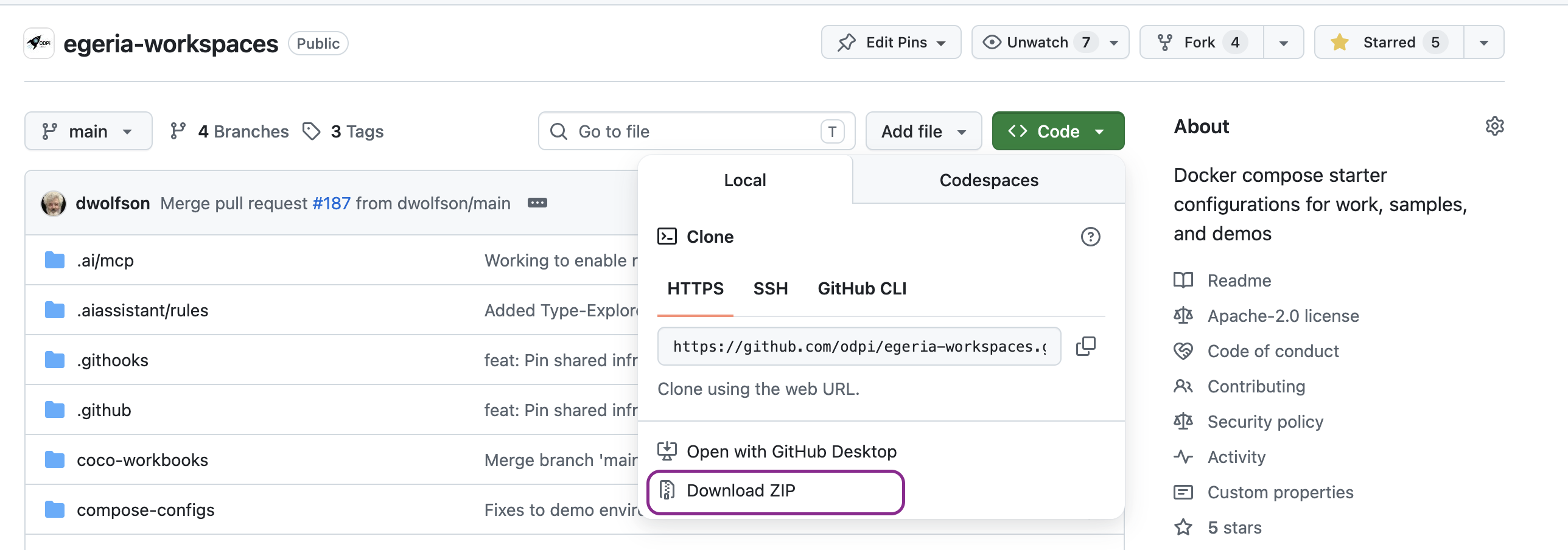
Unzip the file and change to the egeria-workspaces directory.
From a command window, create a new directory (folder) for Egeria's workspaces on your local machine.
mkdir egeria-workspaces
Change to your new directory.
cd egeria-workspaces
Egeria's workspaces files are extracted from GitHub using the following git command:
git clone https://github.com/odpi/egeria-workspaces.git
A new directory has been created with the workspaces' source code. Change to the egeria-workspaces directory and you are ready to build the source.
cd egeria-workspaces
From a command window, create a new directory (folder) for Egeria's workspaces on your local machine.
mkdir egeria-workspaces
Change to your new directory.
cd egeria-workspaces
Egeria's workspaces files are extracted from GitHub using the following git command. Replace USER with your GitHub user name:
$ git clone https://github.com/USER/egeria-workspaces.git
A new directory has been created with the workspaces' source code. Change to the egeria-workspaces directory and you are ready to build the source.
cd egeria-workspaces
Next set-up the upstream repository to connect your clone to the main Egeria repository:
$ git remote add upstream https://github.com/odpi/egeria-workspaces.git
Finally check that all is set up correctly:
$ git remote -v
origin  https://github.com/USER/egeria-workspaces.git (fetch)
origin  https://github.com/USER/egeria-workspaces.git (push)
upstream        https://github.com/odpi/egeria-workspaces.git (fetch)
upstream        https://github.com/odpi/egeria-workspaces.git (push)
$
The ls command allows you to list the files from the repository:
ls
It should be the same as the contents of the git repository on GitHub.
4. "Set up your organization name
Edit the file runtime-volumes/freshstart-platform-data/freshstart.application.properties and scroll down to the platform.organization.name property to your organization name. By default, it is set to Egeria Freshstart. Make your name match the name of the group that your users belong to, or the owners of metadata managed by this deployment of freshstart. So, for example, use your team name if it is a team deployment, or the organization name if it is for the whole organzation.
For example, when Robbie Records sets up his environment, he uses the name Patient Records Data Sharing Hub.
###############################################
### Set up the name of who is running this platform.
##### If this is for personal use, add your own name.
##### If this is for your team, add your team name ...
################################################
platform.organization.name=Patient Records Data Sharing Hub
5. "Run the start-up command
Now, from the egeria-workspaces directory,
run the startup command.
if everything is to run on a single computer use the following command to start the environment:
./fresh-start-local
If you want to run Egeria as a server, that people can connect to from their own machines use the following command to start the environment:
./fresh-start-multi-host
The workspaces start up script will download all the software needed by Egeria and start it up. When it has completed the set up, it will display the URL of the Egeria Portal. Click on the link, or copy the link and paste it into your browser.
6. Start up the Egeria Portal
The Egeria Portal is a web application that allows you to explore the metadata that is stored in Egeria.
7. Set up your users
Work In Progress
This page is part of the new function for version 6.1 of Egeria. We aim to release this version in September 2026, so watch this space - new content is on its way :)
Inside the Freshstart environment

Raise an issue or comment below