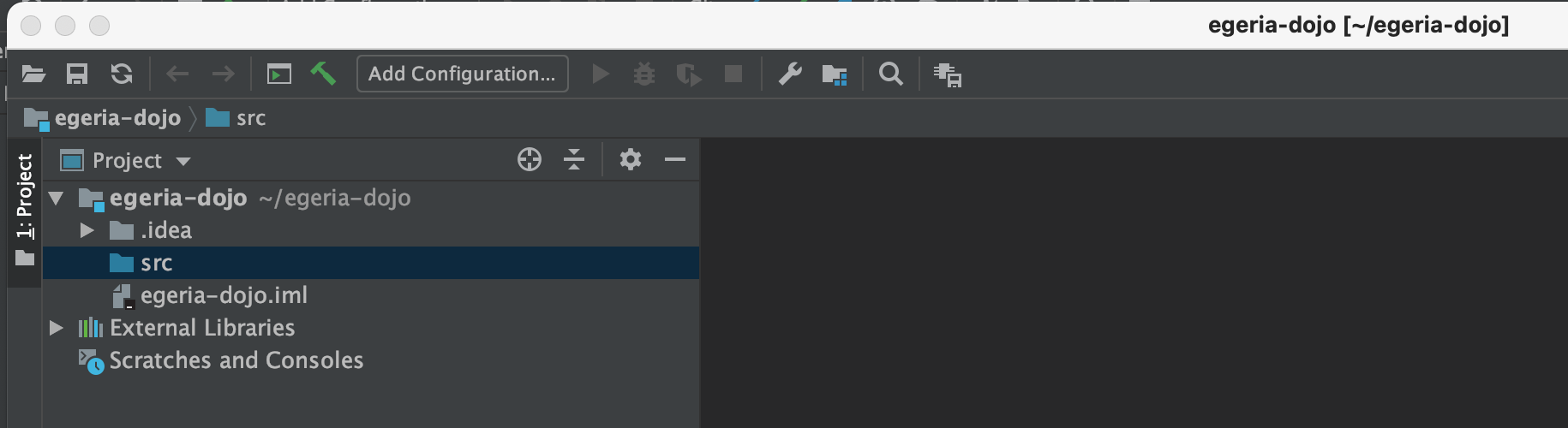
Intellij new project
To add a new project to intellij, select New then Project from the File top-level menu of IntelliJ.

Select Java then set up the project SDK by selecting your Java 17 installed JDK and then click the Next button.
If this is the first time you are using IntelliJ you may need to click on the New... button and navigate to your install directory.

Leave the Create project from template option blank and simply click the Next button.

Add the name of the project in Project name and the directory where you want the project files to be stored in Project location.

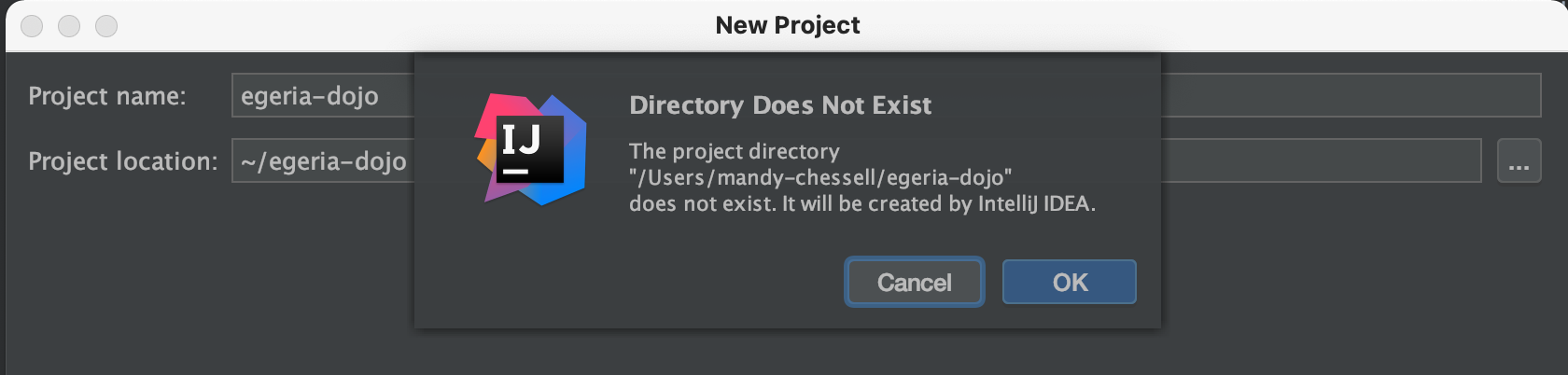
Click on the Finish button. If the directory is new, you may get this pop-up to confirm that the directory should be created. Click OK.
Once the wizard completes IntelliJ will open up your new project, ready to begin coding. The src directory is where your code will go.