Installing IntelliJ
Installing Intellij
Link to the download page and follow the instructions.
Start up IntelliJ.
Set up Java ...
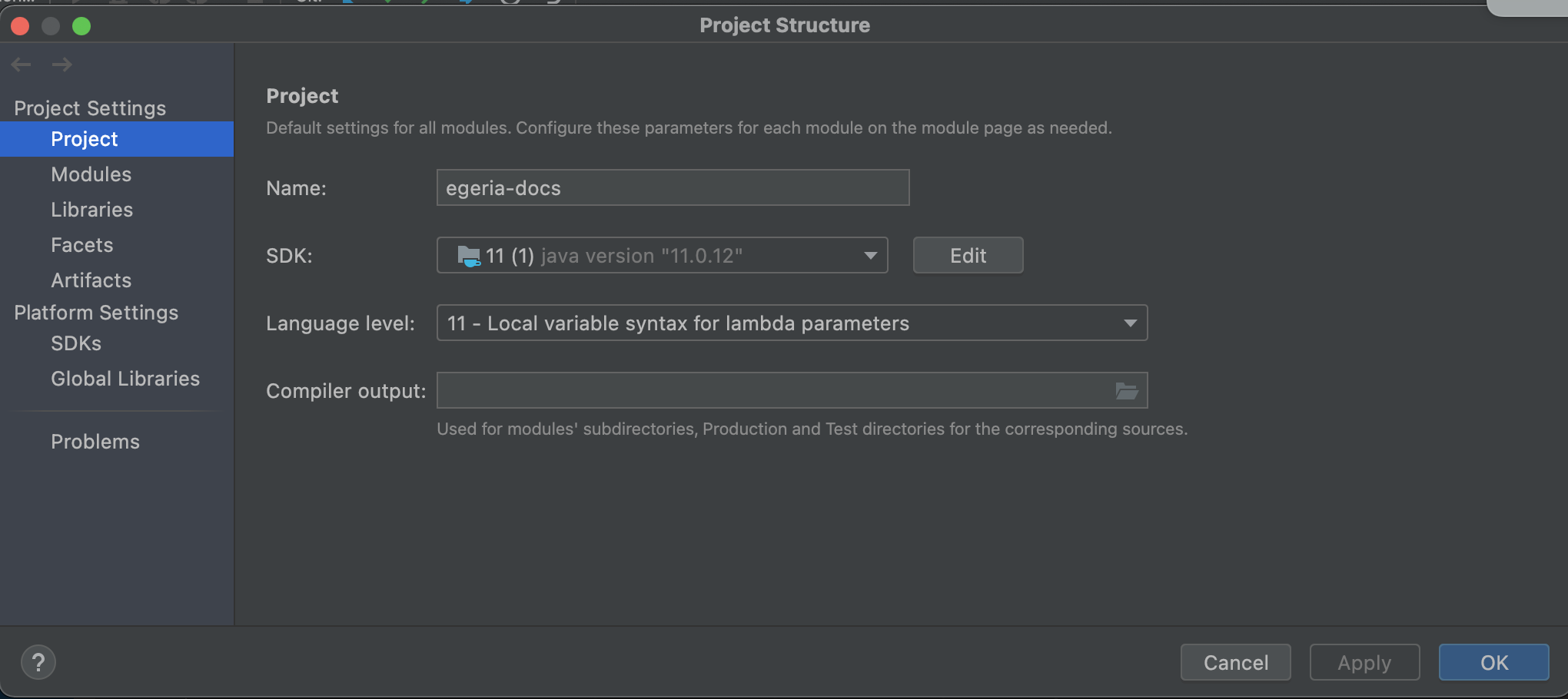
Validate that the project is set up with the right level of Java - you need Java 17. Select File and then Project Structure.... When the wizard opens select Project and ensure the SDK is Java 17.
Set up Maven ...
Set up Maven to the version that you downloaded by selecting Preferences ... from the IntelliJ IDEA menu and then Build, Execution, Deployment followed by Build Tools followed by Maven in the left-hand menu of the resulting wizard. Ensure the Maven Home Directory points to a level of Maven that is at least version 3.5.0.
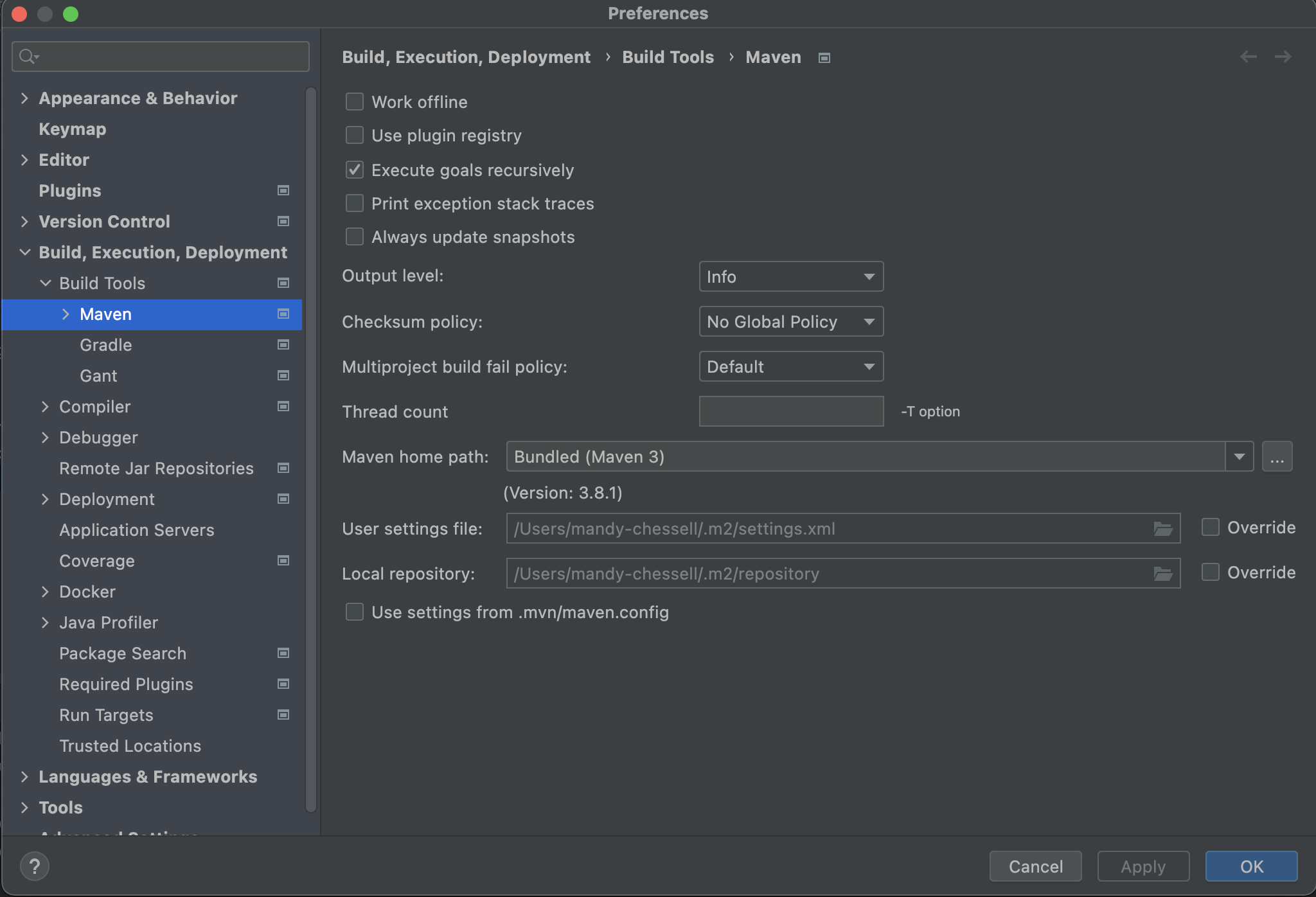
The three dots after the directory name enables you to select your Maven install directory.
Ensure you have enough memory ...
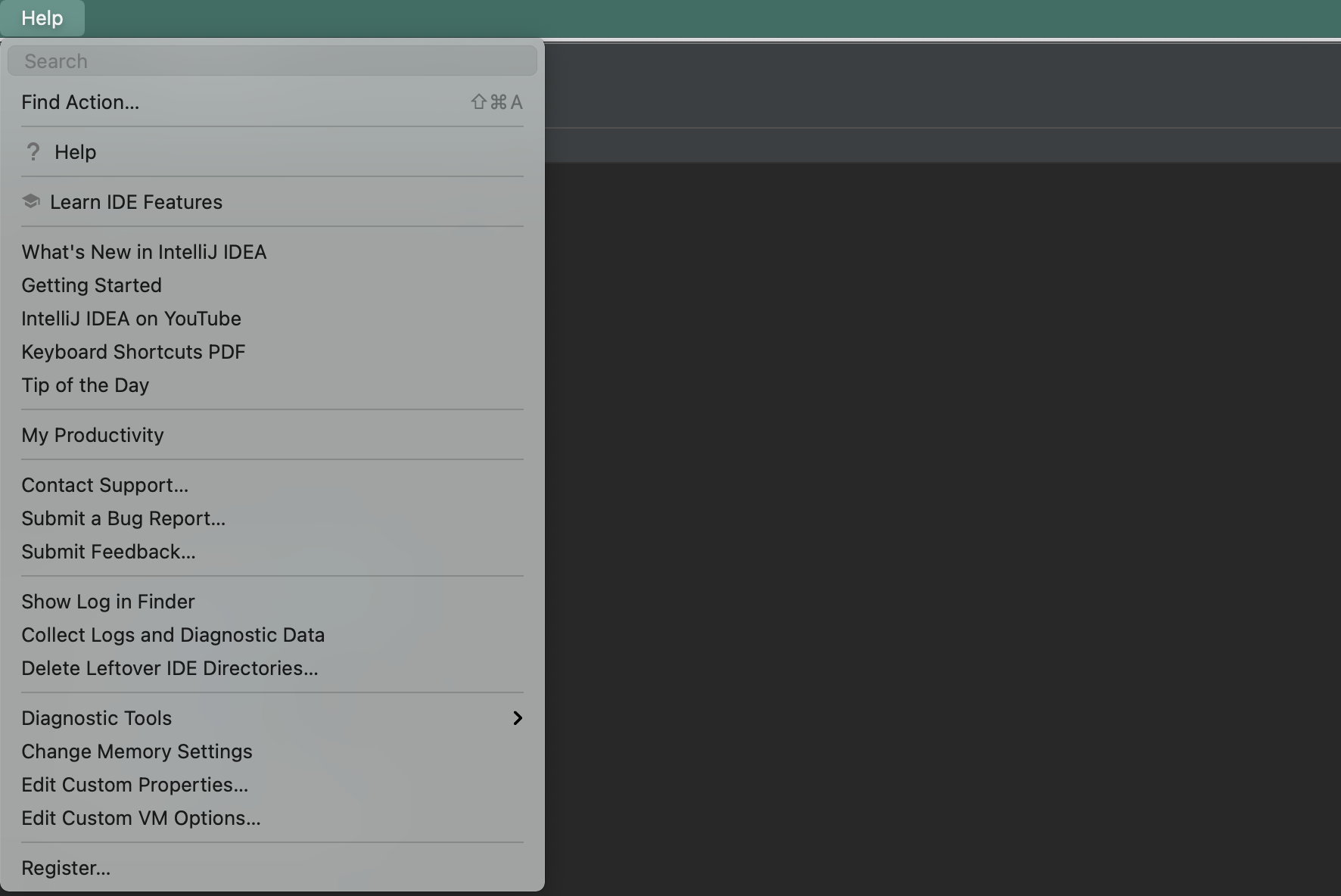
Update your memory settings for IntelliJ to ensure you have at least 2GB of memory. This is the option Change Memory Settings that is under the Help menu. In some editions it is nested under Diagnostics.
Check your lombok setup
Egeria makes use of Project Lombok . If using JetBrains IntelliJ IDEA ensure it has the required plugin configured .
Don't detect generated sources
Before running a Maven build, please choose Don't detect from the Generated sources folders dropdown in Preferences -> Build, Execution, Deployment -> Build Tools -> Maven -> Importing. This will avoid triggering a duplicate classes build error caused by the delomboked sources folders being added as source folders for the Maven module.
If this wasn't set when your project was initially setup, you may find that delombok directories are already present in IntelliJ's source path for some modules, leading to errors with duplicate classes.
To check for any modules still refering to delombok you can run this at the command line, from your top-level source tree:
Find any existing delombok source entries in IntelliJ
find . -name '*.iml' | xargs -n50 grep -y delombok
If you find any hits such as:
./open-metadata-implementation/access-services/data-engine/data-engine-api/data-engine-api.iml: <sourceFolder url="file://$MODULE_DIR$/target/delombok" isTestSource="false" />
then either remove those lines without IntelliJ running, or go into File -> Project Structure -> Modules, and remove target/delombok from the Source Folders list
Explanation: in addition to importing module defintions from the Maven pom.xml, IntelliJ also tries to look for any generated source. It finds the delombok directory, causing duplicates: in fact we only use this directory for generating Javadoc of lombok-enabled modules. Switching the setting / removing these source folders prevents these duplicate classes.
Raise an issue or comment below